Switching from Salesforce Marketing Cloud to HubSpot is a big decision, and most of the guides out there walk you through the same checklist: contacts, deals, workflows, reports, integrations. Somewhere near the bottom of that list is a line that gets glossed over every time: transactional and marketing email templates must be rebuilt.
That line is doing a lot of work. If your team has built up a library of AMPscript-heavy templates in Salesforce Marketing Cloud, "rebuilt" doesn't mean copy and paste. It means starting over, one email at a time, in a different editor with a different templating language and different rules for how content blocks and personalization behave.
There's a better way to handle this part of the migration. This post covers what actually happens to your emails during a Salesforce to HubSpot migration, why it's more painful than most teams expect, and how using a dedicated email production platform removes the rebuild step entirely, whether you're moving to HubSpot, moving away from it later, or swapping in a new ESP down the line.
What Actually Happens to Your Emails During a Salesforce to HubSpot Migration
Salesforce Marketing Cloud uses AMPscript, a proprietary scripting language, to power personalization, dynamic content, and conditional logic inside email templates.
- HubSpot doesn't read AMPscript. It uses its own templating language, HubL, along with its drag-and-drop editor.
- That mismatch means none of your existing templates transfer as-is. Every template with dynamic content, personalization tokens, or conditional rendering logic needs to be manually recreated in HubSpot's system before it will work the same way.
- For a small email program, that might mean rebuilding a handful of templates. For a mature program with welcome series, lifecycle flows, transactional emails, and campaign templates built up over years, that's dozens or hundreds of emails, each one requiring a developer or email specialist to recreate the logic, then a full QA pass to confirm it renders and personalizes correctly across clients.
- Every template needs a human to check rendering, verify personalization logic, and confirm the email still matches brand standards before it goes out to real subscribers.
Why This Step Gets Underestimated
Most Salesforce to HubSpot migrations treat email templates as one line item among many: contacts, properties, lists, automations, reports, campaigns, email templates. It reads like a checklist item on par with reconfiguring a dashboard.

It isn't. Rebuilding email templates is one of the only migration tasks where a mistake is customer-facing. A broken workflow or a misconfigured report is an internal problem. A broken email, with a rendering issue in Outlook or a personalization token that fails to populate, goes straight to your subscribers' inboxes.
That's why teams consistently report email template migration as one of the more time-intensive parts of the move, even when everything else goes according to plan.
The Real Fix: Decouple Your Emails From Your Platform
Here's the underlying problem. Every time your team builds an email directly inside your ESP or marketing cloud, that email becomes locked to that platform's templating language, editor, and rendering engine. Salesforce Marketing Cloud, HubSpot, Braze, Iterable: it doesn't matter which one. The email lives inside the platform, so migrating platforms means rebuilding every email.
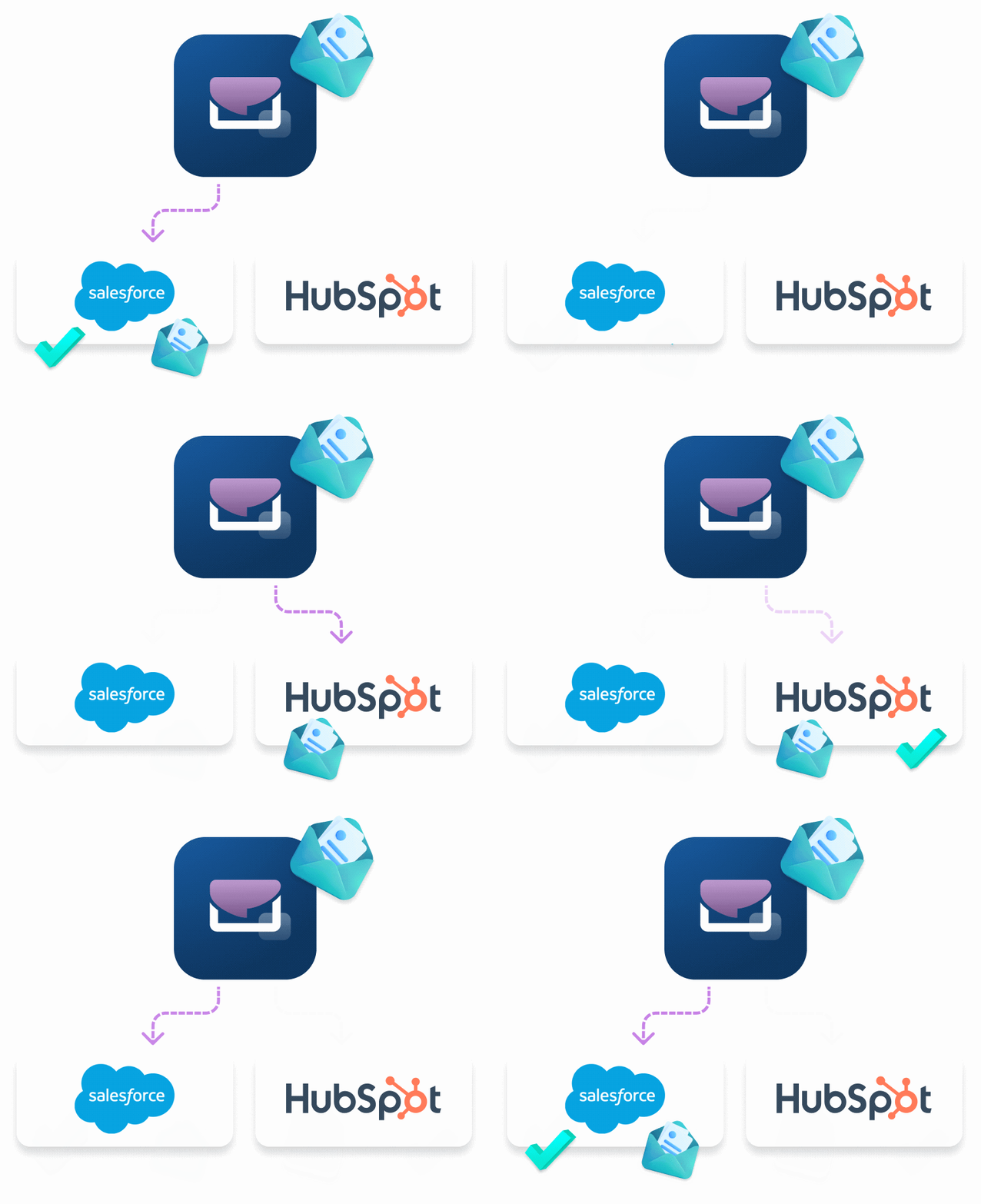
A production platform like Dyspatch breaks that link. Instead of building emails directly inside your ESP, you build and manage them in Dyspatch, then connect Dyspatch to whichever platform you're sending from. When you swap ESPs, you're not rebuilding your email library. You're swapping the connection.
This is the same "swap once, update everywhere" principle that makes asset management tools valuable for images and brand assets, applied to email templates. Update a template once in Dyspatch, and every email built from it reflects the change everywhere it's used, without hunting down individual campaigns across platforms.
What this looks like in practice
- Your email templates, content blocks, and brand components live in Dyspatch, not inside Salesforce Marketing Cloud or HubSpot.
- When you migrate from Salesforce to HubSpot, you connect Dyspatch to HubSpot and keep sending. No AMPscript-to-HubL rebuild. No AI reconstruction pass. No re-QA of every template across email clients.
- If you decide to leave HubSpot for another platform in a year, or two years, the same thing happens again: reconnect, don't rebuild.
That last point is the real shift in thinking. Most migration guides treat the destination platform as the end of the project. In reality, most marketing teams switch platforms more than once over the life of a business, as pricing changes, feature needs shift, or a company scales past what its current stack can support. A production platform means each future migration costs you a connection change, not a rebuild.
Salesforce to HubSpot Migration Checklist
- Audit your current email library. Inventory every active template, including transactional, lifecycle, and campaign emails, and flag which ones rely on AMPscript personalization or dynamic content.
- Map your data and properties. Align Salesforce fields, lists, and custom objects to their HubSpot equivalents.
- Migrate contacts, companies, and deals. Use a direct integration or manual export/import, and clean data before the move.
- Rebuild automations and workflows. Salesforce's Process Builder and Journey Builder logic need to be recreated as HubSpot workflows.
- Move your email templates into a production platform, not directly into HubSpot. This is the step that removes the rebuild bottleneck. Build once in Dyspatch, connect to HubSpot, and skip the manual AMPscript-to-HubL conversion entirely.
- Recreate reports and dashboards. HubSpot's reporting structure differs from Salesforce's, so core reports need to be rebuilt or supplemented with a BI tool.
- Test thoroughly before cutover. Run parallel sends, confirm personalization renders correctly, and keep your old platform live for a transition window.
FAQ
Do email templates transfer automatically from Salesforce Marketing Cloud to HubSpot?
No. Salesforce Marketing Cloud templates use AMPscript, which HubSpot doesn't support. Templates need to be manually recreated in HubSpot, or rebuilt using an AI-assisted tool like HubSpot Smart Transfer, which still requires a manual review before sending.
How long does it take to migrate email templates during a Salesforce to HubSpot migration?
It depends on the size of your template library and how much personalization or dynamic content each template uses. Teams with dozens of AMPscript-heavy templates often cite email rebuilding as one of the most time-intensive parts of the entire migration, sometimes taking weeks on its own.
Can I avoid rebuilding my emails when I switch email platforms?
Yes, if your templates live in a production platform rather than directly inside your ESP or marketing cloud. Platforms like Dyspatch let you build emails once and connect them to whichever sending platform you're using, so switching platforms means reconnecting, not rebuilding.
What happens if I switch away from HubSpot later?
If your email templates are built directly inside HubSpot, switching away means rebuilding them again in your next platform, the same problem you're solving right now. If your templates live in a production platform like Dyspatch, you avoid that cycle every time you change ESPs.
The Bottom Line
Salesforce to HubSpot migrations are complex enough without email templates adding weeks of manual rebuild work. The real fix isn't a better import tool. It's not building your emails directly inside a platform you might leave in a year or two.
Build your emails in Dyspatch once, connect to HubSpot now, and stay free to swap ESPs or CRMs later without touching a single template.